
Practical guide · Feeding
How to set a Cat Mate C500 schedule
Set the C500 clock and daily meal times with the correct controls. Follow worked examples, distinguish meal settings from tray compartments and test the next opening.
The short answer
Programme repeating times, then load the next four openings
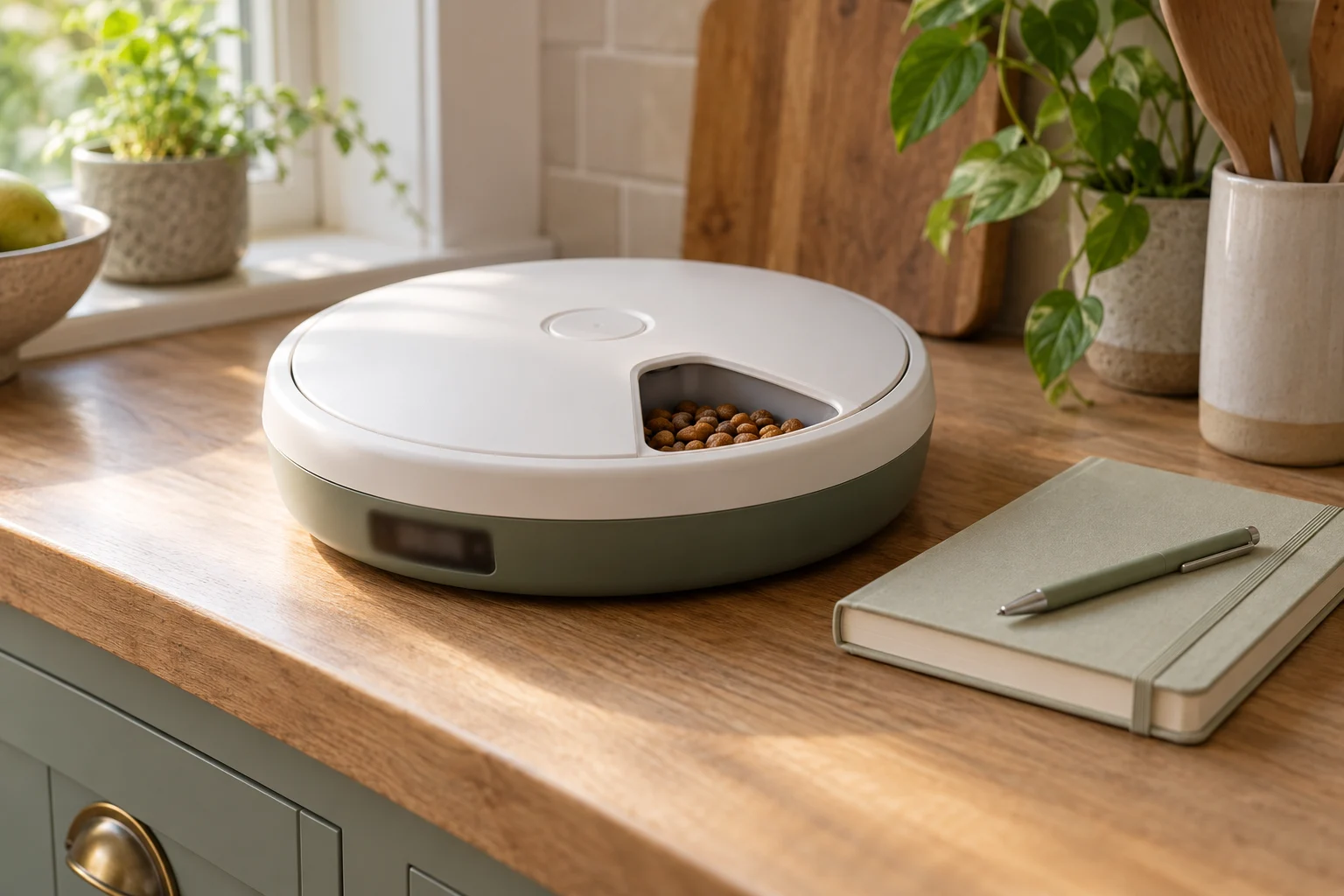
The C500 has one immediately accessible compartment and four later openings, controlled by up to four daily repeating meal times. Set the current clock first, then programme only the daily times you need. Load future food clockwise from bowl 1 and align bowl 0 with base 0. The next actual programmed time opens bowl 1; meal labels are not permanent compartment or day numbers.
The most useful C500 setup question is: what should open next from the current time? Answering that before adding food prevents confusion between the display’s meal labels and the tray’s numbered compartments.
This guide applies to the Cat Mate C500 controls described in the manufacturer’s 36502/02 instructions, covering references 365, CP365 and CP465. Match the manual to your unit. The instructions below use UP, DOWN and ADJ/SET; the C3000’s FEED controls are different.
Understand the clock, meal entries and tray
The tray has five compartments numbered 0–4. Bowl 0 is the initially open position; fill it only when an immediate meal is required. Bowls 1–4 hold the four later portions in the order they will be exposed.
The display offers MEAL 1–4 time entries. They describe times of day that repeat, not four dates or four permanently assigned bowls. You can programme one, two, three or four daily times, leaving unused entries blank. The display automatically sorts enabled times from earliest to latest.
The standard feeder includes the tray and two ice packs. It controls timed access and does not weigh food, identify one cat or refrigerate the contents.
For several meals
Cat Mate C500 five-meal feeder
A rotating tray with one compartment open initially and four scheduled openings. A sensible starting point when you want several pre-portioned meals without an app.
Check: Ice packs require preparation
View on Amazon ↗1. Set the current clock first
- Use UP or DOWN to move the highlight frame to the current clock display.
- Hold ADJ/SET for five seconds, until the hour flashes. Use UP or DOWN to select the correct hour.
- Press ADJ/SET to move to the minutes, then adjust with UP or DOWN.
- Press ADJ/SET again to save.
To change between 12-hour and 24-hour display, hold ADJ/SET + DOWN until the format changes. In 12-hour mode, check AM/PM carefully. The examples below use the 24-hour clock to make the sequence easier to follow.
If no button is pressed for 30 seconds while editing, the display stops flashing and changes revert to the previous or default settings. Read the saved clock back after finishing. An editing attempt is not enough if it timed out before the final save.
2. Set only the daily meal times you need
- Highlight MEAL 1 with UP or DOWN.
- Hold ADJ/SET for three seconds, until the meal hour flashes.
- Set the hour using UP or DOWN, then press ADJ/SET.
- Set the minutes using UP or DOWN, then press ADJ/SET to save.
- Repeat for the other daily meal times you require.
Meal minutes change in ten-minute increments. A time such as 18:30 is supported; 18:35 is not. After entering all times, read the sorted entries back against your plan rather than relying on the order in which you typed them.
To remove an unwanted entry, highlight it, hold ADJ/SET until it flashes, then press UP and DOWN together until --:-- is shown. Do this within meal editing. The same two arrow buttons have a different role in normal operation.
Worked example: two daily times, loaded in the afternoon
Suppose the current clock is 15:00, and your chosen daily feeding times are 08:00 and 18:00. Enter those two times and leave the other entries blank. The next trigger is today at 18:00, because today’s 08:00 has already passed.
| Future tray compartment | When it opens in this example | Why |
|---|---|---|
| Bowl 1 | Today, 18:00 | Next enabled time after 15:00 |
| Bowl 2 | Tomorrow, 08:00 | Next daily time after the evening opening |
| Bowl 3 | Tomorrow, 18:00 | The two-time pattern repeats |
| Bowl 4 | Following day, 08:00 | Fourth future opening |
This table describes the timer sequence. It is not permission to hold a particular food for that duration or leave a cat without appropriate human checks. Food suitability, storage instructions, room conditions and the cat’s care arrangements must be assessed separately.
Worked example: four daily times, loaded after lunch
Now suppose the current clock is 13:00, with daily entries 08:00, 12:00, 18:00 and 22:00. Today’s first two times have passed. The four future bowls therefore open in the order shown below.
| Future tray compartment | Next opening |
|---|---|
| Bowl 1 | Today, 18:00 |
| Bowl 2 | Today, 22:00 |
| Bowl 3 | Tomorrow, 08:00 |
| Bowl 4 | Tomorrow, 12:00 |
The examples use illustrative feeding times, not a universal feeding recommendation. Choose times around your cat’s established plan. Changing the number of daily entries changes how quickly the four future compartments are used; it does not increase tray capacity.
With just one daily entry, the same time repeats each day. You do not need four different MEAL entries to represent four separate dates. Plan supervision and food storage independently of that mechanical capability.
3. Load and align the tray
Weigh the intended portions before loading. Fill future bowls clockwise from 1; fill 0 only for food available immediately. Keep food below any level that could obstruct rotation, and keep the base and mating surfaces clean and dry.
Fit the two pre-frozen ice packs and replace the bowl with 0 on the bowl aligned to 0 on the base. If alignment is wrong, remove the lid and use the supported ADJ/SET + UP for three seconds alignment function. Do not force the tray round or treat this as an extra-feed control.
Fit the lid so the sprung clips on both sides click into place. Confirm the unit is in its intended stable, cool, dry position. Bowl 1 should be the next meal exposed at the next programmed time.
The maker instructs freezing the packs for at least six hours. A spare compatible pair can help preparation, but a frozen pack is not a refrigerator and does not guarantee a fixed safe holding time for wet food.
Keeping a spare C500 ice-pack pair ready
Cat Mate C500 replacement ice packs, pack of two
A pair of sealed reusable ice packs listed for the C500 feeder. Match the C500 model family and two-pack contents before ordering; these are different from the C20/C50/C200 ice-pack family and are not refrigeration.
Check: Cooling depends on the conditions
View on Amazon ↗4. Check a real opening while you are present
Rehearse the schedule with the feeder empty or with suitable test food kept out of extra meals. Check the current clock, enabled entries, alignment and next expected time, then observe an actual scheduled rotation. Restore and read back your intended programme after any temporary test setting.
In normal operation, hold UP + DOWN until OFF appears to stop the feeder while retaining its programme. Repeat to turn it back on. Always check that it is back in the required operating state after loading or testing.
After battery replacement or a household clock change, verify the clock and every enabled time. Use missed-meal troubleshooting if an expected opening fails, and feeder cleaning for care between uses.
Keep timing separate from food and cat care
Follow the food producer’s storage advice and the C500 instructions together. Ice packs, shade and a lid do not make every wet-food timetable suitable in every room. If the intended holding period is not supported, change the feeding arrangement rather than relying on the timer’s maximum number of openings.
Keep fresh water, suitable litter access and appropriate human checks in place. The automatic-feeder introduction guide covers helping the cat use the machine comfortably before depending on it.
For the diagrams and original controls, use the manufacturer’s C500 instructions. For exact spare-part families, use Cat Mate bowl and ice-pack compatibility.
Frequently asked questions
Does the Cat Mate C500 have five programmable meal times?
No. It has five compartments: bowl 0 can be available immediately, with bowls 1–4 presented at later openings. The timer provides up to four daily repeating meal-time entries. Five compartments do not mean five independently programmed future times.
Why did the C500 serve MEAL 2 before MEAL 1?
The time entries sort chronologically, and the next actual programmed clock time is the next trigger. If the current time is 15:00 with daily times of 08:00 and 18:00, the next opening is 18:00. The first filled future compartment is still bowl 1.
Can I set a C500 meal for 08:05?
Meal minutes use ten-minute increments, so choose a supported time such as 08:00 or 08:10. The current clock is set separately. Do not assume the meal timer offers every minute simply because the clock displays minutes.
How do I cancel one C500 meal time?
Highlight that meal, hold ADJ/SET until its time flashes, then press UP and DOWN together until --:-- appears. This is the editing context. Holding UP and DOWN during normal operation instead switches the whole feeder OFF or back on.
Will changing batteries preserve the C500 schedule?
The manual says to replace all batteries within 60 seconds and press no buttons during removal or replacement to retain the clock and meal settings. Even after a careful change, check the clock, enabled times and operating state. Reprogramme and test if anything has reset.